LIVE AUDIENCE REACTIONS SOFTWARE

Live Audience Reactions Software for Events

Let the room respond without interrupting the speaker.

Give attendees a simple way to react to a presentation—and make their participation visible on the event screen.

Technanosoft develops custom audience reaction software that turns attendee-selected smiles, applause and other approved emojis into live on-screen animations. Bring the audience into the session while keeping the presentation at the centre of the experience.

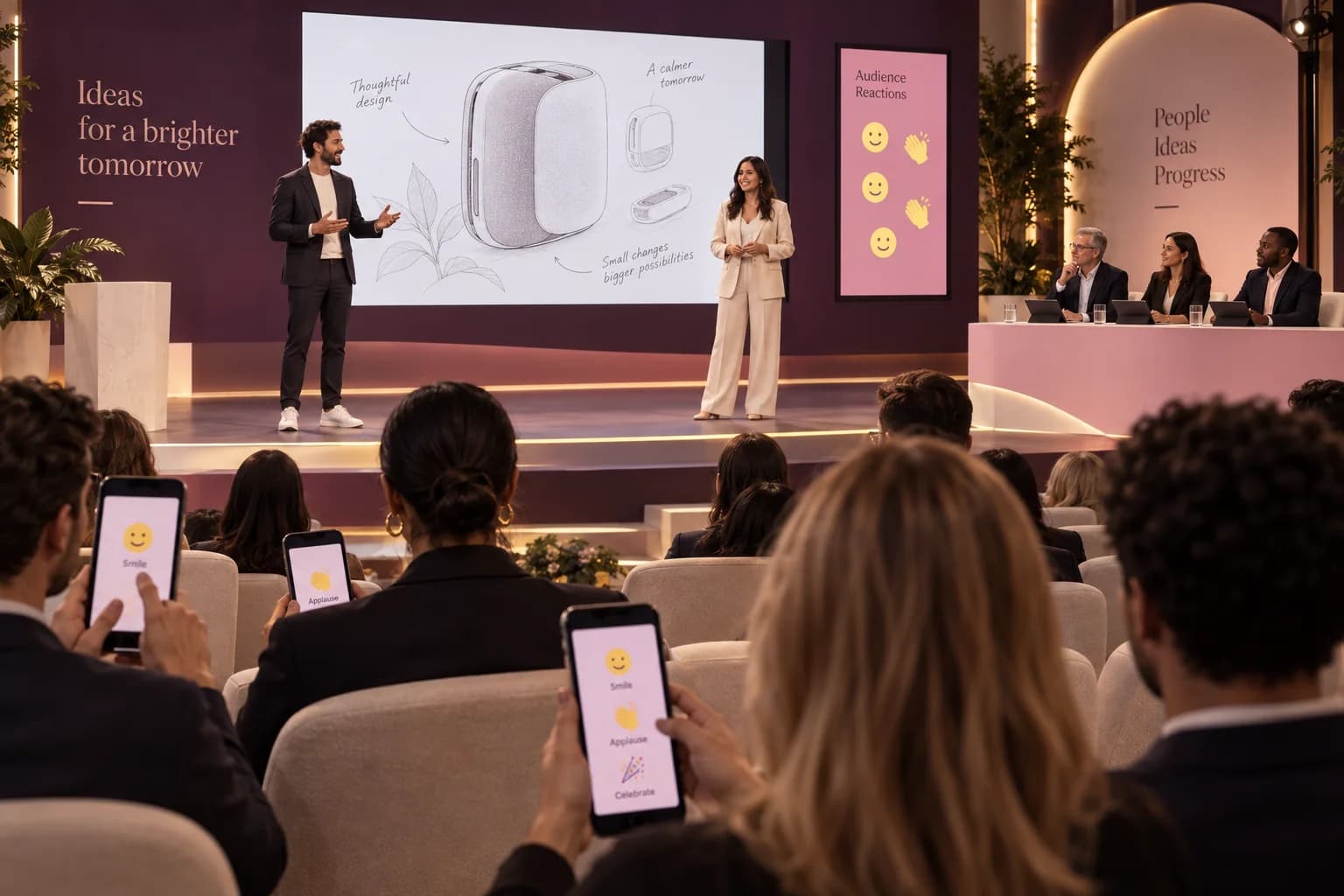
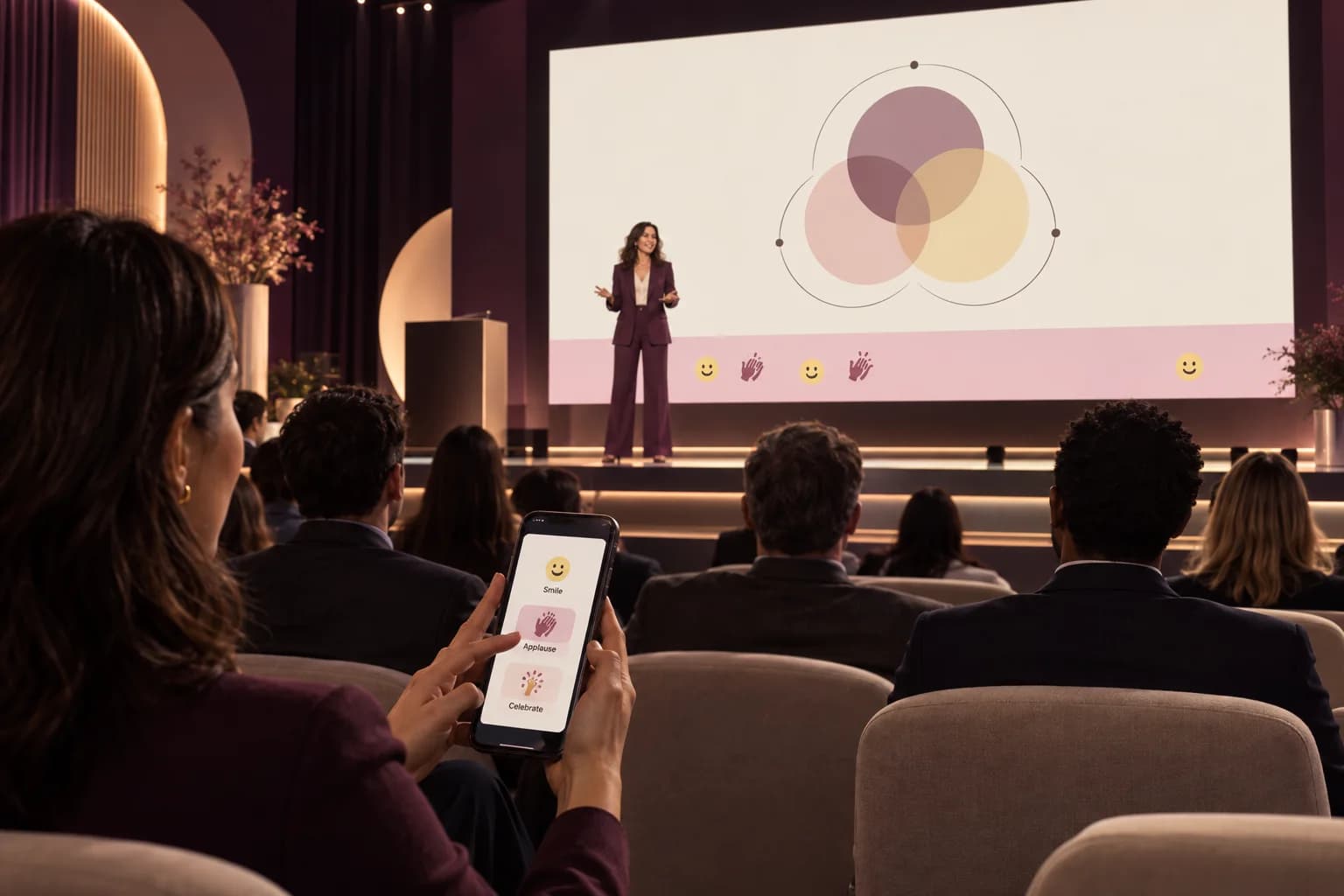
Concept illustration of attendees deliberately choosing reactions on their devices while a speaker presents beside a screen with a reserved reaction area.A LITTLE TAP. A SHARED MOMENT.
01 Choose02 Tap03 React
AI-generated event concept. Participant screens and stage arrangements are illustrative.
LET THE ROOM JOIN THE MOMENT

For conferences, company town halls, innovation events and live presentations.

A RESPONSE WITHOUT AN INTERRUPTION

Not every response
needs a microphone.

A speaker shares an idea. An attendee taps a smile. Others join with applause or celebration reactions. Their chosen emojis appear on the event screen while the session continues.

The audience has a way to participate without raising a hand, opening a microphone or waiting for the question-and-answer session.

We build the software behind that interaction, connecting a simple reaction panel with a display experience designed around your stage, content and programme.

A tap from the audience.
A visible response in the room.

FROM A TAP TO THE SCREEN

From an attendee’s choice
to the event screen.

The input devices, reaction choices and display behaviour are defined around your event setup.

  1. 01

    Open the Reaction Panel

    Guests access the reaction interface on the selected tablet, kiosk or participant device. A phone-based joining flow using a session link or QR code can be included where it suits the event.

  2. 02

    Choose a Reaction

    Attendees tap an approved emoji, such as a smile, applause or celebration. Clear labels explain each choice, while visual confirmation shows that their input has been received.

  3. 03

    Bring the Response to the Screen

    The software applies the configured reaction rules and sends accepted responses to the event display. Show emojis as floating, falling or other agreed animations without covering essential presentation content.

  4. 04

    Keep the Session Under Control

    Give authorised staff controls to open or pause participation, clear active animations and move to the next session. Define what happens to outstanding reactions when a presentation ends.

Choose a reaction Submit the response Apply display rules Animate on screen

BEHIND THE EXPERIENCE / DFDs

Welcome the response.
Protect the presentation.

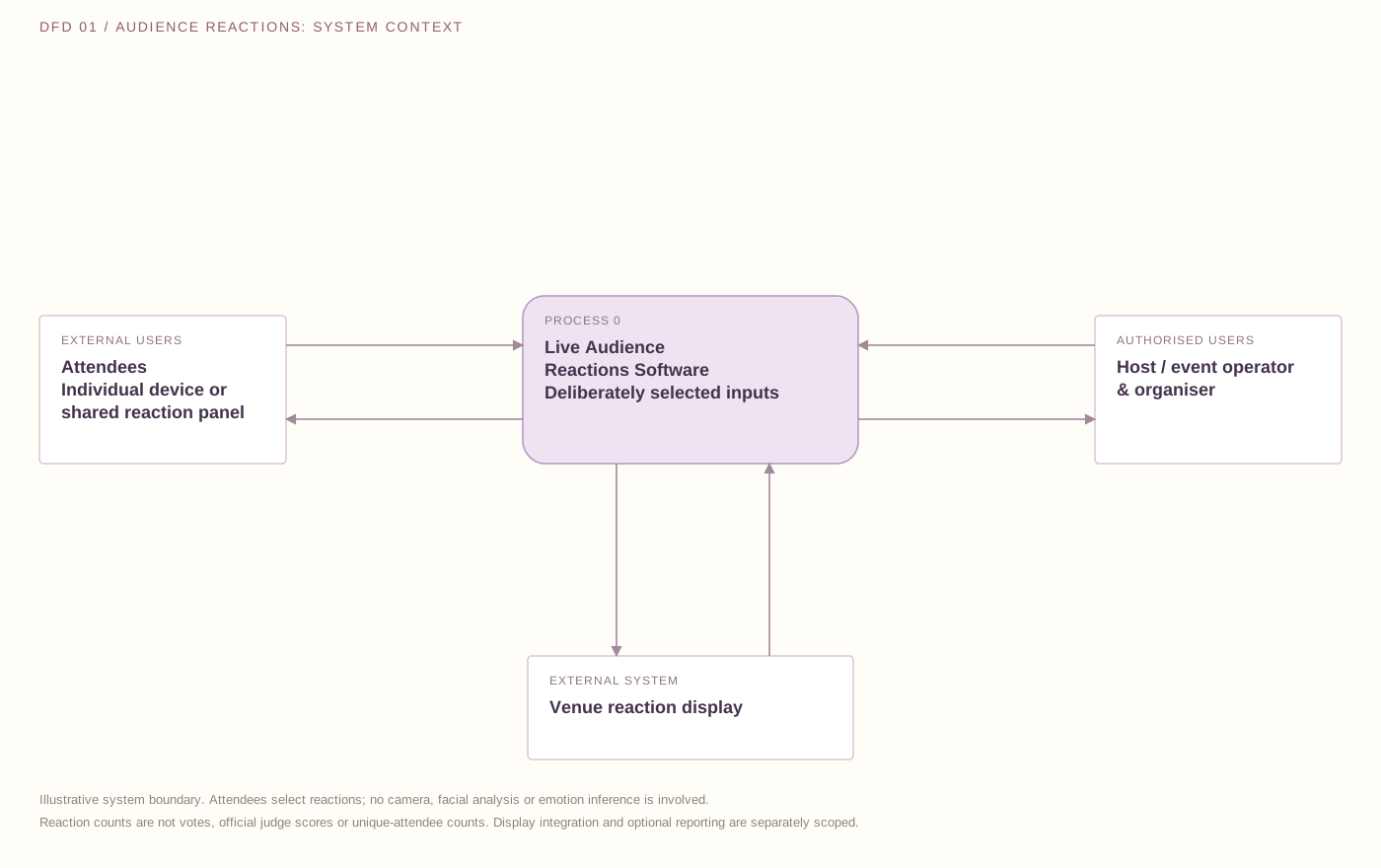
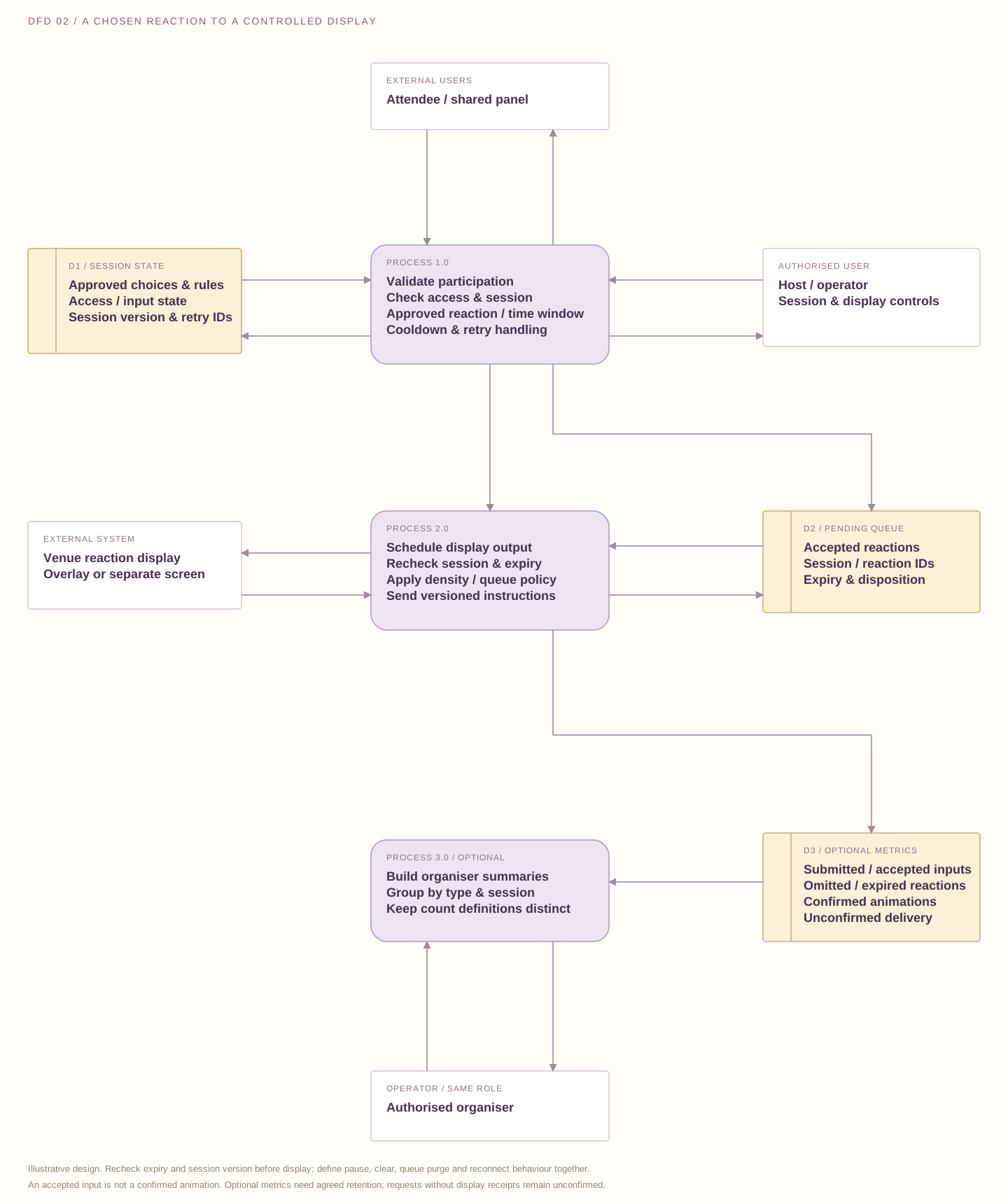
Follow a chosen reaction through session checks, acceptance and display rules. These illustrative DFDs describe a possible design; access, expiry, pause behaviour, storage and reporting are agreed for your event.

Download SVG
Data-flow diagram connecting deliberate attendee reaction choices, authorised operator controls and a venue display, with reaction status returned to participants.

Attendees deliberately choose an approved reaction and receive session state and acceptance feedback. Authorised operators configure reactions, access, pause and clear behaviour, expiry and screen limits. The application sends display-safe animation instructions to the venue display and receives display status. Optional summaries are for organisers; reaction totals are not votes, judge scores, unique-attendee counts or inferred emotions.

External entity Process Data store→ Labelled data flow
Open full size ↗

On smaller screens, scroll across the diagram or open it full size.

A choice, not a detected emotion. The attendee selects a labelled reaction. No camera, facial analysis or emotion inference is part of this experience.

Keep each response in its session. Validate the session and expiry before display. A pause, clear or session change follows agreed queue rules so older reactions do not spill into the next presentation.

Acceptance and animation are different. Density limits may group, queue or omit accepted reactions. Submitted inputs, accepted inputs and displayed animations are separate measures; none automatically counts unique attendees.

FEATURES & CUSTOMISATION

Make the interaction
fit the room.

Choose the capabilities that support your event. The final reaction set, device configuration, display behaviour and reporting are agreed within the custom project scope.

Custom Emoji & Smile Buttons

Choose the reactions available to attendees. Keep the set focused and label each button clearly so guests understand what they are selecting.

Use approved choices rather than an unrestricted message feed when the experience should stay simple and presentation-friendly.

OPTION TO SCOPE

Branded Participant Screens

Carry your event identity into the reaction panel, joining screen and session messages. Plan the interface for the selected phones, tablets or shared kiosks.

Keep controls easy to find, with clear feedback after each tap.

OPTION TO SCOPE

Animated Big-Screen Reactions

Create floating emojis, falling reactions or another agreed animation style. Define their size, movement, duration and permitted display area.

A dedicated reaction screen or an overlay on presentation content can be assessed around the chosen production setup.

OPTION TO SCOPE

Host & Operator Controls

Give authorised staff a separate control panel for starting participation, pausing inputs, clearing animations and changing sessions.

Make it possible to quiet the display during detailed slides, sensitive discussions or announcements without ending the entire experience.

OPTION TO SCOPE

Session-Specific Reaction Feeds

Associate reactions with the relevant presentation or session. Define when participation opens, when it closes and how the screen resets between speakers.

Prevent delayed responses from appearing during a different presentation by agreeing clear expiry and reset rules.

OPTION TO SCOPE

Input Limits & Display Density Controls

Set optional cooldowns between taps and limits on how many animations appear at once. Keep a busy audience response from overwhelming the screen.

Define how additional reactions are grouped, queued or omitted from animation when the display reaches its configured limit.

OPTION TO SCOPE

Optional Reaction Summaries

Include organiser-facing summaries of accepted reactions by type or session. Define whether reports count submitted inputs, accepted inputs or displayed animations.

Keep reaction totals separate from unique-attendee counts, especially when guests can react more than once.

OPTION TO SCOPE

Access & Connection Recovery

Scope session codes or restricted access where participation should be limited to the event audience.

Plan what the interface shows during a connection interruption and whether older inputs expire rather than appearing late after reconnection.

OPTION TO SCOPE

FOR AUDIENCES & EVENT TEAMS

Give the audience a place
in the presentation.

Plan Your Live Reactions
01 / For Attendees

A Simple Way to Participate

Let guests respond through a few clear choices. Keep the interaction brief so they can return their attention to the speaker rather than navigate a complicated interface.

02 / For Presenters

See the Responses People Choose to Share

Make selected audience reactions visible during the session. Use them as a voluntary expression of participation—not as a substitute for questions, structured feedback or a formal evaluation.

03 / For Organisers

Control When the Interaction Happens

Decide which sessions include reactions, who can activate them and how they appear. Keep participation aligned with the programme instead of leaving animations running throughout every presentation.

04 / For Event Production

Protect the Main Content

Plan the reaction area around slides, captions, names and other important on-screen information. Use a separate display where an overlay would distract from the material being presented.

PARTICIPATION, AT THE RIGHT MOMENT

Bring reactions into
the moments that suit them.

These examples illustrate possible configurations, not previous client results.

Concept illustration of attendees selecting reactions during a keynote, with a designated reaction area on the venue screen.EVENT CONCEPT 01
AI-generated concept illustration

Conferences & Business Summits

Let attendees respond during selected presentations or at moments introduced by the host. Keep the reaction controls available without turning every slide into an audience activity.

EXAMPLE CONCEPT

Guests choose smiles or applause during a keynote, with animations appearing in a designated area of the event screen.

Concept illustration of a town hall recognition moment with a separate reaction display beside the main presentation.EVENT CONCEPT 02
AI-generated concept illustration

Company Town Halls & Employee Events

Give colleagues a simple way to acknowledge announcements, celebrate milestones or respond to a presentation.

EXAMPLE CONCEPT

The host opens a celebration reaction during an employee-recognition segment, then pauses the animations before the next discussion.

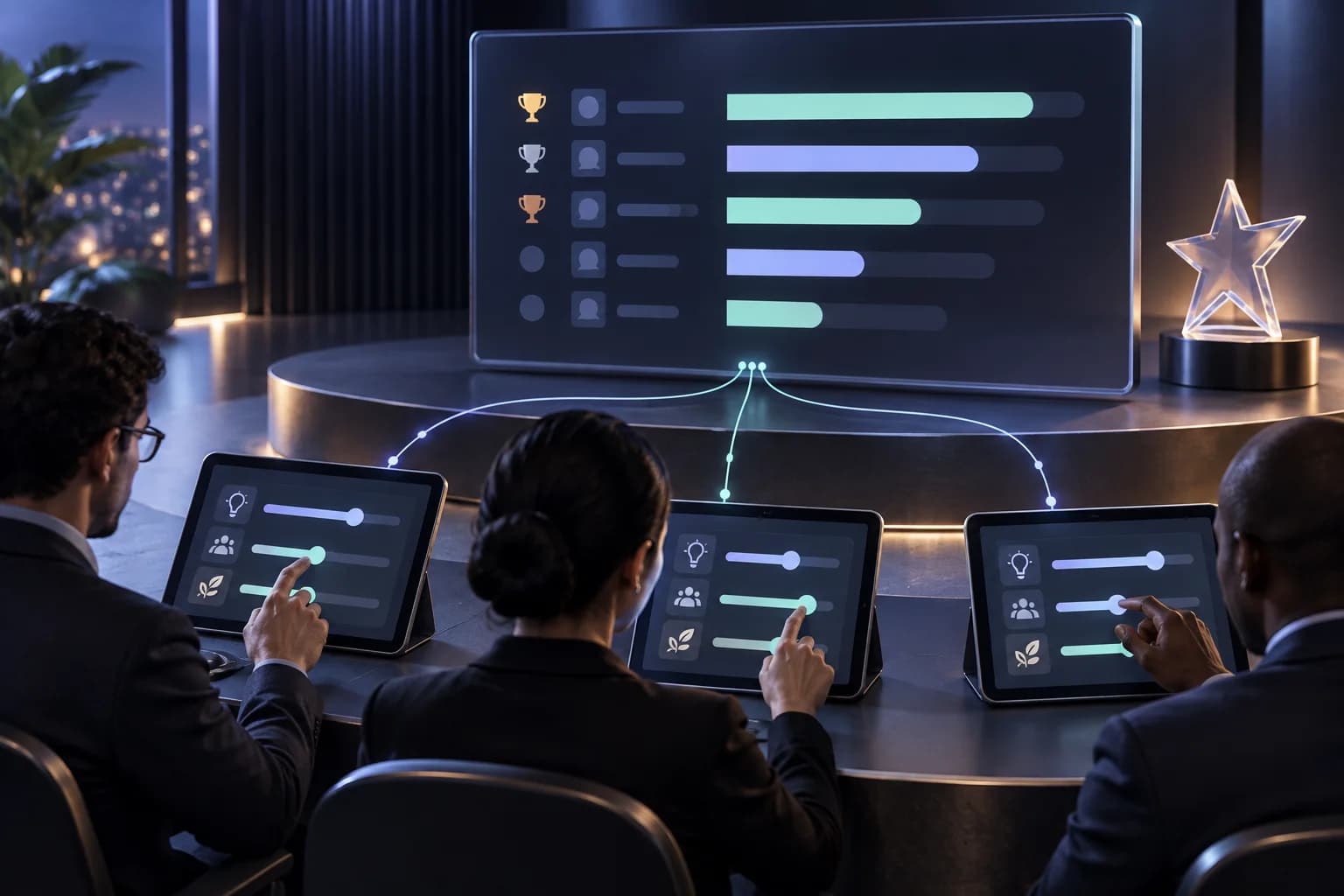
Concept illustration of audience encouragement during a pitch, with reactions separate from the judging panel’s evaluation.EVENT CONCEPT 03
AI-generated concept illustration

Innovation Challenges & Pitch Presentations

Add a visible participation layer while teams present their ideas. Keep audience reactions separate from official judge scores and competition results.

EXAMPLE CONCEPT

Attendees send encouragement during presentations while judges complete their evaluations in a separate scoring workflow.

Concept illustration of workshop participants selecting a reaction on a shared tablet after a demonstration.EVENT CONCEPT 04
AI-generated concept illustration

Workshops & Live Demonstrations

Introduce reaction moments at natural pauses in the programme. Let participants acknowledge a demonstration without interrupting the explanation.

EXAMPLE CONCEPT

The presenter invites a reaction after completing a demonstration, then clears the display before moving to the next activity.

WHY TECHNANOSOFT

The interaction is simple.
The operating details matter.

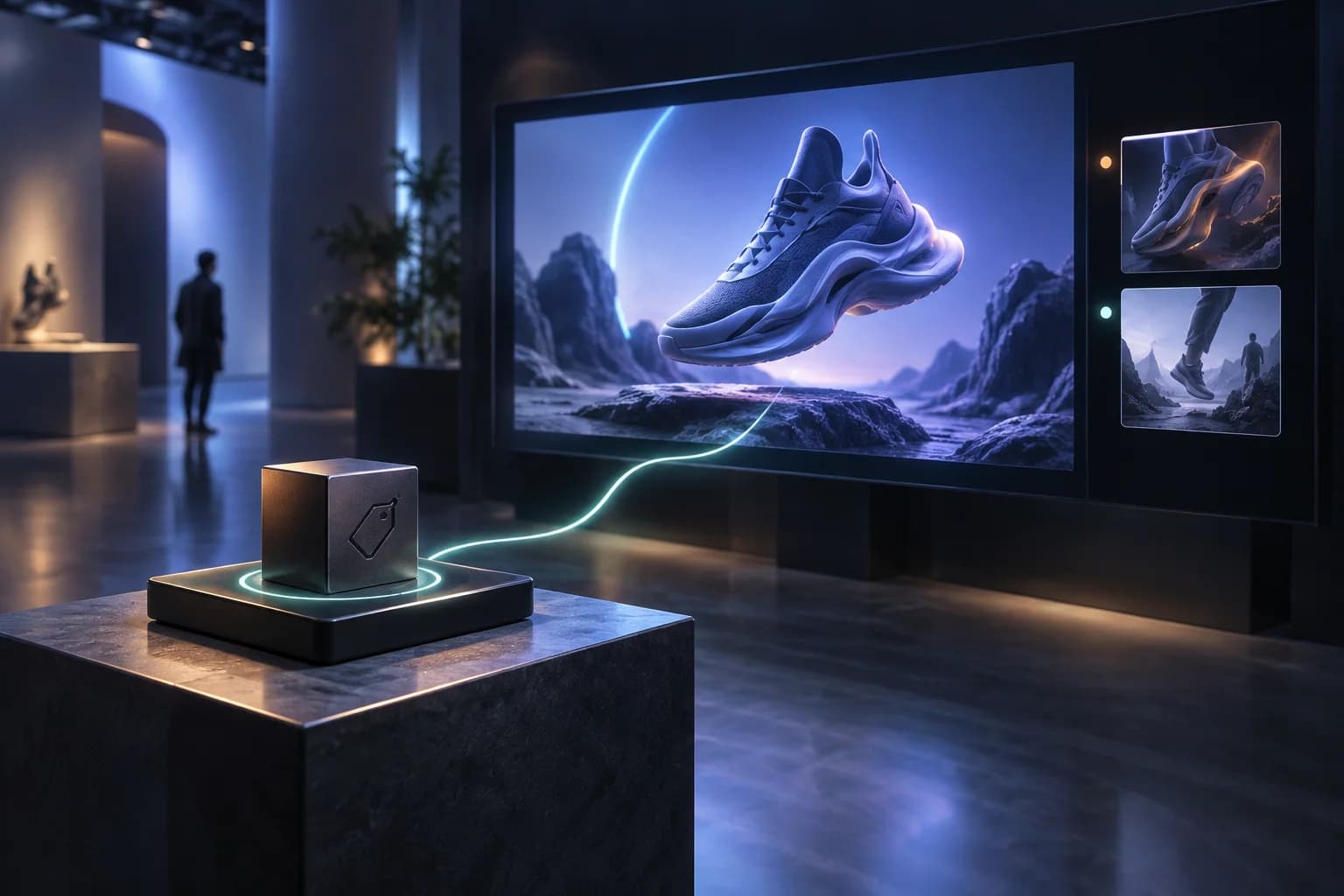
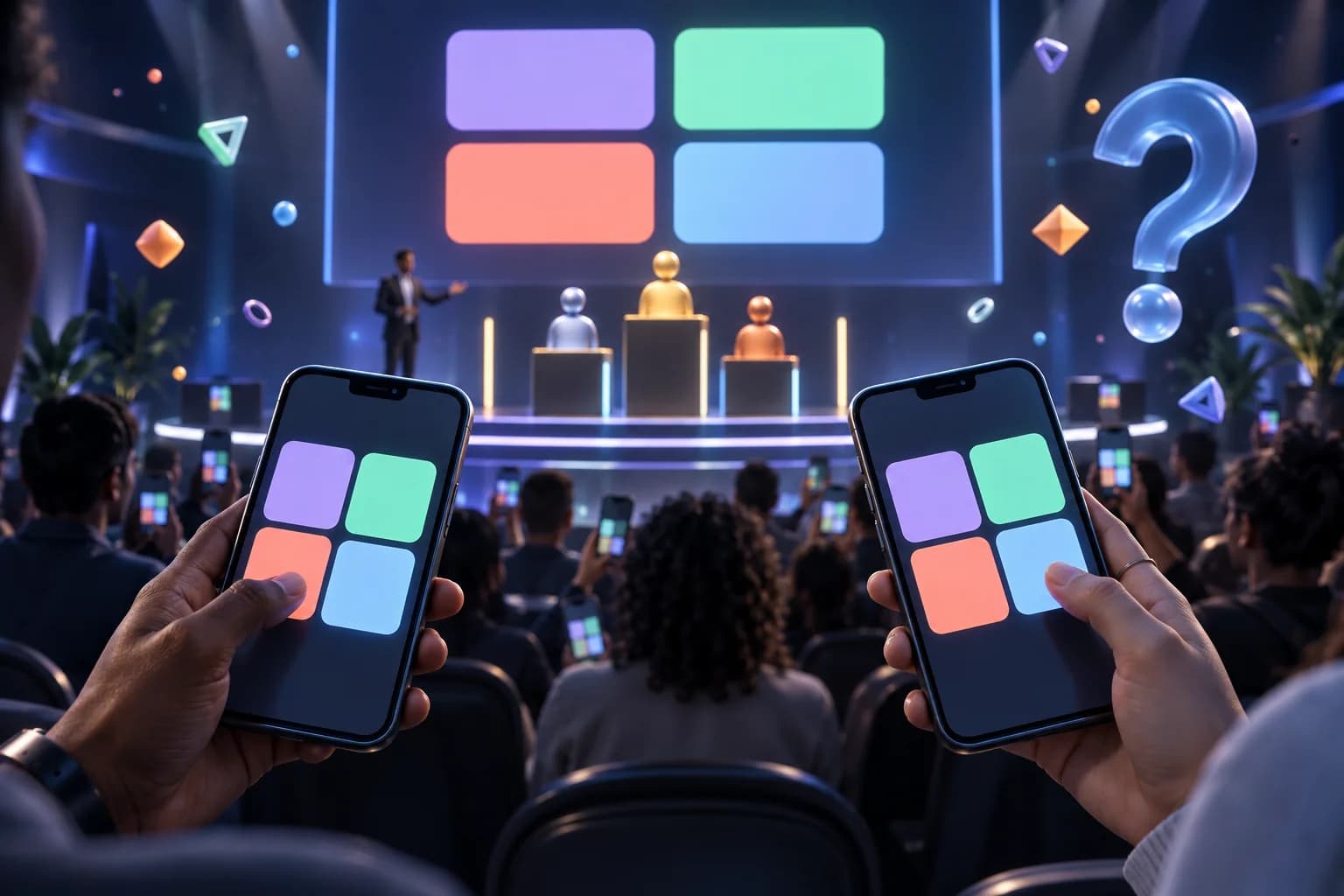
Technanosoft has delivered audience reaction software alongside other event applications, including digital judging, quiz games, registration and badge printing, selfie kiosks and RFID-controlled video experiences.

We bring that project experience into planning both the attendee interaction and the controls behind the event screen.

Explore our event software
01

Build Around the Presentation

Start with how the session runs and where audience input belongs. Shape the reaction experience around the programme rather than adding an animation layer without a clear purpose.

02

Keep Participant and Operator Controls Separate

Guests need a few understandable buttons. Event staff need session controls, display settings and recovery options. Design each interface for the person using it.

03

Connect With the Agreed Display Setup

Confirm the participant devices, network, presentation source and display arrangement early. Test the full route from a guest’s tap to the visible animation before event use.

OUR DEVELOPMENT PROCESS

From reaction ideas
to a rehearsed screen experience.

The goal is visible participation without losing the presentation.

  1. 01

    Define the Participation Model

    Share the event format, expected simultaneous participation and intended devices. Agree which reactions guests can choose, when they can participate and whether the experience uses individual or shared devices.

  2. 02

    Design the Interface & Animations

    Plan the reaction buttons, input confirmation and session messages. Review animation styles against representative slides so the reactions do not obscure content.

  3. 03

    Build the Controls & Display Connection

    Develop the agreed participant interface, operator controls and reaction display. Include session rules, input limits, reporting and access requirements where they form part of the scope.

  4. 04

    Rehearse the Live Workflow

    Test bursts of input, pauses, session changes and interrupted connections. Review how the display behaves when participation increases and how staff return it to a clear state.

BEFORE WE BUILD

Questions About
Live Audience Reactions Software

Practical details for planning your experience.

Plan Your Live Reactions
01What is live audience reactions software?

It lets attendees select reactions on a device and displays those responses during an event.

A custom experience can include smile and emoji buttons, animated screen effects, session controls and optional reaction summaries. The input method and display setup are designed around the event requirements.

02Does the software detect smiles or analyse facial expressions?

No. The experience described here uses reactions that attendees deliberately select.

It does not use cameras to detect smiles, analyse faces or infer emotions. A smile reaction means someone chose that button; it is not a measurement of their facial expression or emotional state.

03How is this different from a quiz, poll or voting system?

Audience reactions provide a lightweight way to express a response during a session.

A quiz evaluates answers against defined rules. A poll collects responses to a specific question. A voting system contributes to a decision under agreed eligibility and counting rules.

Emoji reactions should not automatically be treated as votes or competition scores.

04Can attendees use their own phones?

A phone-based participant interface can be included, with joining through an agreed session link, QR code or access code.

The project needs to account for device compatibility, venue connectivity and expected simultaneous participation. Dedicated tablets or shared kiosks can also be considered.

05Can reactions appear over the presentation slides?

An overlay can be assessed for the selected presentation and display setup. A separate reaction screen is another option.

The arrangement should be tested with the actual presentation source and production equipment. Compatibility with every presentation application or video system should not be assumed.

06Can the host pause reactions or clear the screen?

Yes. Host controls can be included for pausing participation, stopping animations and clearing the display.

Define whether a pause blocks new submissions, temporarily hides reactions or both. Staff should understand these behaviours before the event.

07How do you prevent repeated taps from overwhelming the display?

The application can include input cooldowns, session rules and limits on simultaneous animations.

These controls manage activity and screen density; they should not be described as a guarantee against every form of misuse. Stricter participant identification can be assessed where the event requires it.

08Can we see reaction totals after each presentation?

Optional reports can show accepted reactions by type and session.

The counting method needs to be clear. One person may submit several reactions, so total taps do not necessarily represent the number of attendees. Reaction counts also do not establish whether the whole audience understood or agreed with a presentation.

09How many attendees can react at the same time?

Capacity depends on the application design, hosting, network and display configuration.

Specify the expected number of simultaneous participants and test representative bursts of activity. The number of inputs the system accepts and the number of animations shown at once are separate settings.

10Can the experience operate without public internet access?

A local-network deployment can be assessed during project planning.

Participant devices and the display still need an agreed way to communicate with the application. Connectivity, hosting, access and recovery requirements should be tested together rather than treating “offline” as a single feature.

11Do you provide tablets, screens and on-site operators?

This service focuses on custom software development and agreed integrations.

Tablets, networking equipment, presentation computers, displays, production support and on-site staffing should have clearly assigned responsibilities. They should not be assumed to be included in the software scope.

12How much does custom audience reaction software cost?

Pricing depends on the participant interface, animation design, session controls, display integration, access requirements and reporting.

A shared-tablet setup and a large multi-device experience require different development and testing work. The estimate should distinguish software development from hosting, equipment and event-operation costs.

A SMALL RESPONSE. A SHARED EXPERIENCE.

Give your audience a way to join the moment.

Tell us how your presentations run, how attendees will participate and where their reactions should appear.

We’ll help define the software, display behaviour and operator controls around your event.

Share your event date, expected simultaneous participants and preferred screen setup.

Let’s Plan Your Audience Reaction Experience

Tell us what you have in mind. Event details can be confirmed later.

Your contact information and event idea

We’ll use these details to respond to your enquiry. Privacy policy.